FeedbackGuard app icon

Stop feedback.
Before it starts.

Calibrate your room once with permanent notch filters, then let adaptive detection catch anything new during the show — all in a redesigned plugin UI for iPhone and iPad.

Available on the App Store · iPhone & iPad · AUv3

Interface

Built for iPhone and iPad

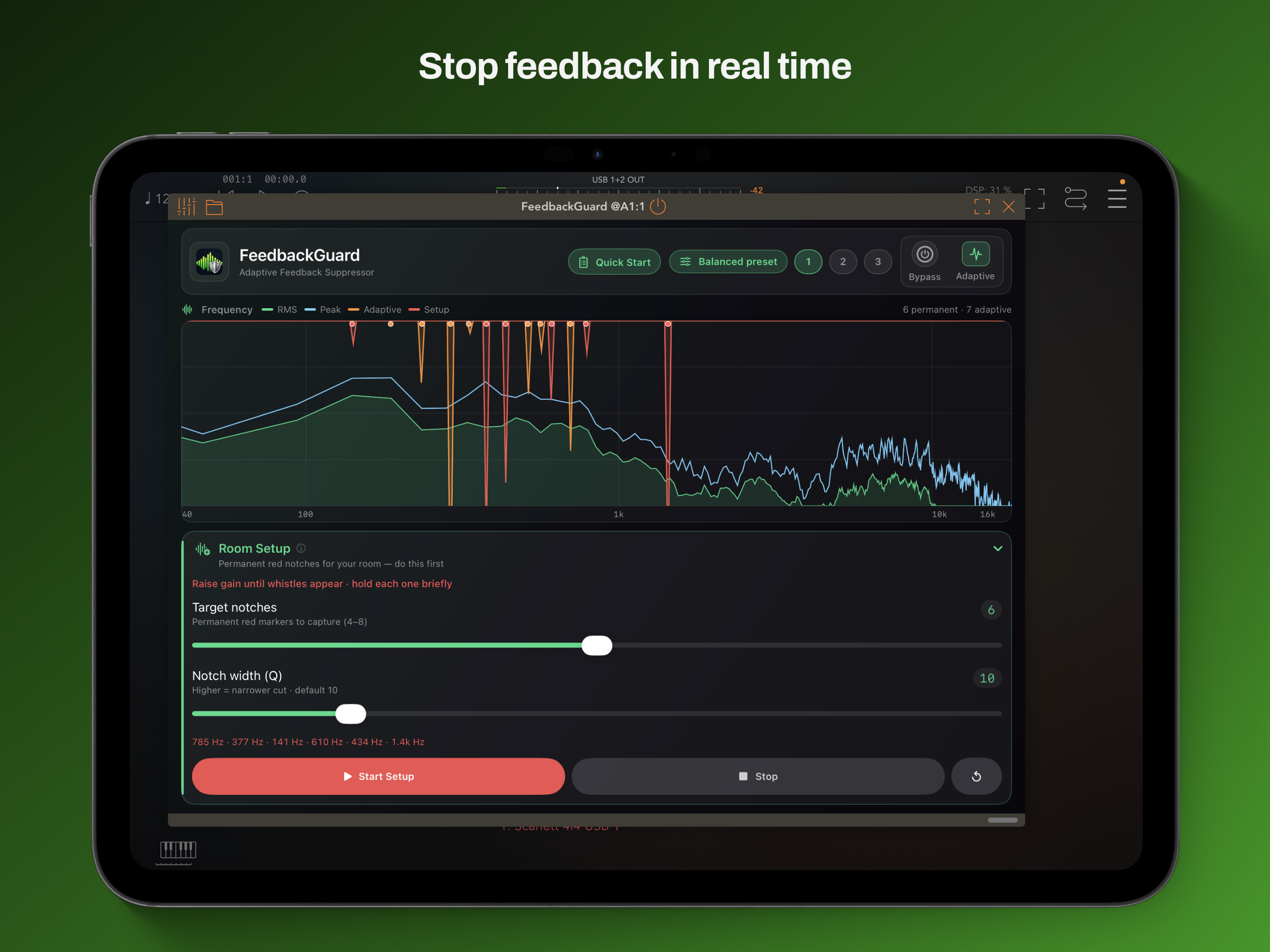
FeedbackGuard on iPad — landscape plugin layout
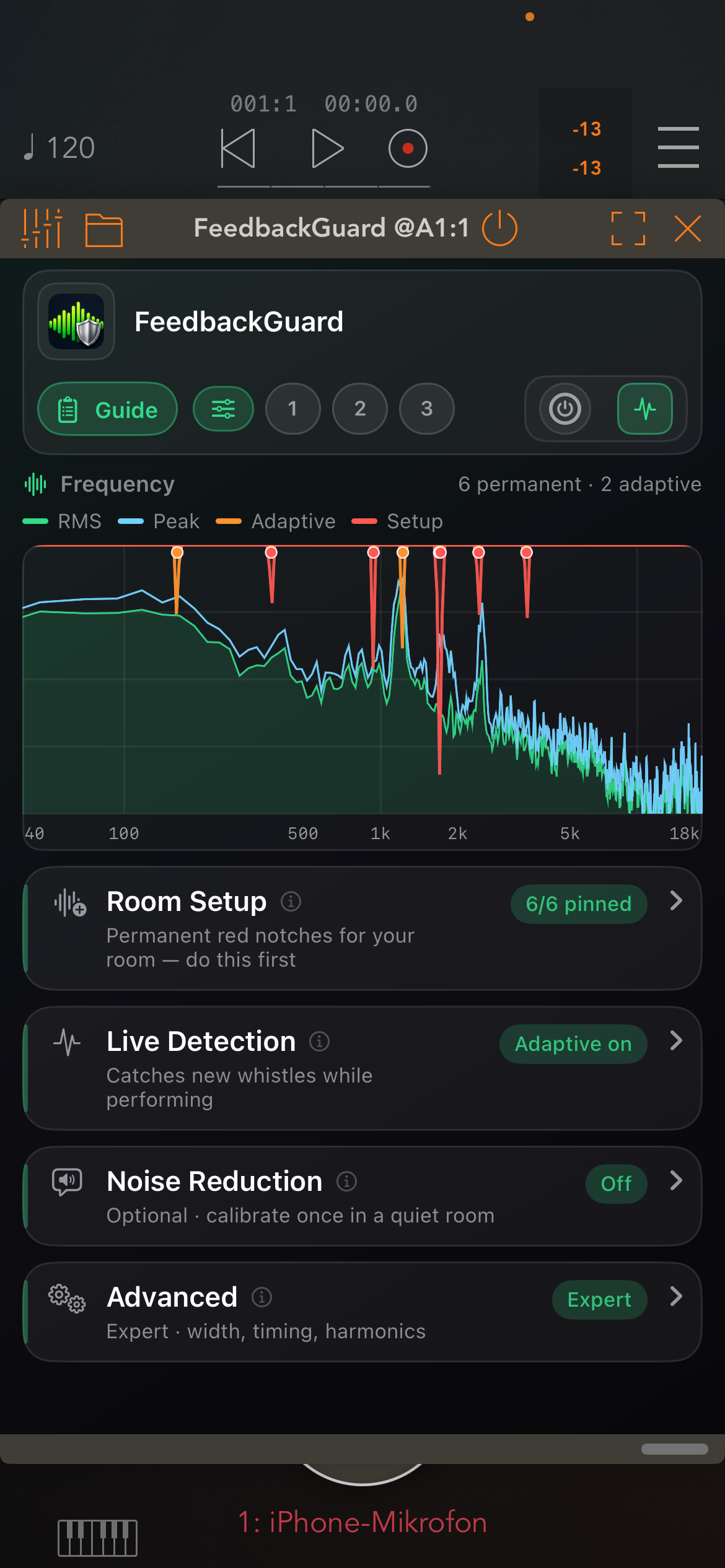
FeedbackGuard on iPhone — Room Setup and spectrum

iPhoneCollapsible Room Setup, live spectrum & compact header controls

iPadWide landscape layout — detection and NR side by side

How it works

Room setup, then live protection

Room Setup

Before the show, slowly raise gain until feedback whistles appear and hold each one briefly. Frequencies become permanent red notches — saved in your presets and visible on the spectrum.

Adaptive Feedback Toggle

During the show, live detection catches new whistles. Turn Adaptive off in the header to keep only your Room Setup notches — useful when you want fixed protection without live notching.

Improved Howling Detection

Refined PNPR analysis with growth checking separates real feedback from speech and music more reliably — fewer false notches, faster catch when a loop starts.

Adaptive Notch Bank

Up to 24 simultaneous notch filters with sub-bin parabolic placement. Attack in as little as 3 ms, clean release when the tone fades — on top of your permanent Room Setup filters.

Live Spectrum View

Real-time FFT from 50 Hz to 18 kHz with red permanent markers, green adaptive notches, and a combined EQ curve — see exactly what FeedbackGuard is doing at a glance.

NR Setup (optional)

Run NR Setup in a quiet room to learn the noise floor, then enable noise reduction for hiss between words. Amount around 50–70 % works well on vocals after calibration.

Presets with Room Setup

Tap Balanced for safe live defaults. Slots 1–3: tap to recall, hold to save — including your Room Setup notches and all parameter settings.

Harmonic Tracking

Optionally notch integer harmonics of detected feedback tones — ideal for stubborn microphone-monitor loops with rich harmonic content.

AUv3 Plugin

Loads in any AUv3 host: GarageBand, AUM, Cubasis, Logic, and more. Redesigned UI for iPhone and iPad — collapsible sections, compact header controls. Mono/stereo, 8–192 kHz.


Support

Get help

Quick start

1. Open your AUv3 host (GarageBand, AUM, Cubasis, Logic, or any compatible app) and insert FeedbackGuard on your vocal or monitor channel.

2. Room Setup — with Bypass off, tap Start Setup and slowly raise gain until feedback whistles appear. Hold each whistle briefly; permanent red notches are created. Setup stops at your target count.

3. Live show — leave Adaptive on so new feedback is caught during the performance. Turn Adaptive off to use only your Room Setup notches.

4. Optional: run NR Setup in a quiet room, enable Noise Reduction, and set Amount around 50–70 %.

5. Tap Balanced for safe defaults, or save your full setup (including Room Setup notches) in preset slots 1–3 — tap to recall, hold to save.

Common questions

When should I use Room Setup vs. Adaptive?
Room Setup pins problem frequencies for your specific mic/speaker/room combo before the show. Adaptive catches anything new during the performance. Most users need both; turn Adaptive off if you only want the permanent red notches.

Notches are appearing on my voice, not just feedback.
Raise the Notch Threshold in Live Detection. A higher value requires a tone to stand out more before an adaptive notch is placed.

Feedback is not being caught quickly enough.
Increase Sensitivity and lower Attack time. Make sure Bypass is off and Adaptive is on.

I hear coloration on quiet passages.
Turn off Noise Reduction, or reduce NR Amount. Run NR Setup first and keep Amount moderate on vocals.

Contact
For bug reports and feature requests, please reach out by email: privacy@audioimpact.at

Privacy Policy

Your data stays on your device

Last updated: May 2026

Overview

FeedbackGuard ("the App") is an Audio Unit v3 plugin for iPhone and iPad, developed by Norwin Palme. This policy describes how we handle information in connection with the App.

Data collection

FeedbackGuard does not collect, store, transmit, or share any personal data or usage information. The App processes audio entirely on your device in real time. No audio, user identifiers, usage metrics, or any other data ever leaves your device.

Third-party services

FeedbackGuard does not integrate any third-party analytics, advertising, crash reporting, or tracking services.

Microphone access

The App is an Audio Unit plugin and does not directly request microphone access. Microphone permissions are managed entirely by the AUv3 host application (e.g. GarageBand, AUM) in which FeedbackGuard is loaded.

Children's privacy

FeedbackGuard does not collect personal information from anyone, including children under the age of 13.

Changes to this policy

If this privacy policy changes, the updated version will be published on this page with a revised date.

Contact

Questions about this privacy policy can be directed to: privacy@audioimpact.at